
Permanent access is a liability you don’t need
A vault of client admin passwords is standing access to every site you’ve ever touched, a hole that grows with each engagement and outlives every contractor who rolls off. TrustedLogin replaces it with access a client grants when you need it, that expires on its own, and that leaves a record. Offboarding a person, or a client, means doing nothing.
When a client leaves, their password stays behind
A client relationship ends, or a contractor rolls off the account, and somewhere there’s still a shared 1Password entry with that client’s admin password in it, unrotated, because rotating it means touching a live site nobody wants to touch. Every client you’ve ever had adds one more entry to a vault that’s become a liability with a search bar.
Turn “who was in our site?” into a selling point
Agencies lose renewals over trust, not talent. When a client can open their own Users screen, see exactly which of your people were in and for how long, and end it themselves, your access turns from a thing they worry about into a thing they point to.
One place your team logs in from, no vault to clean up
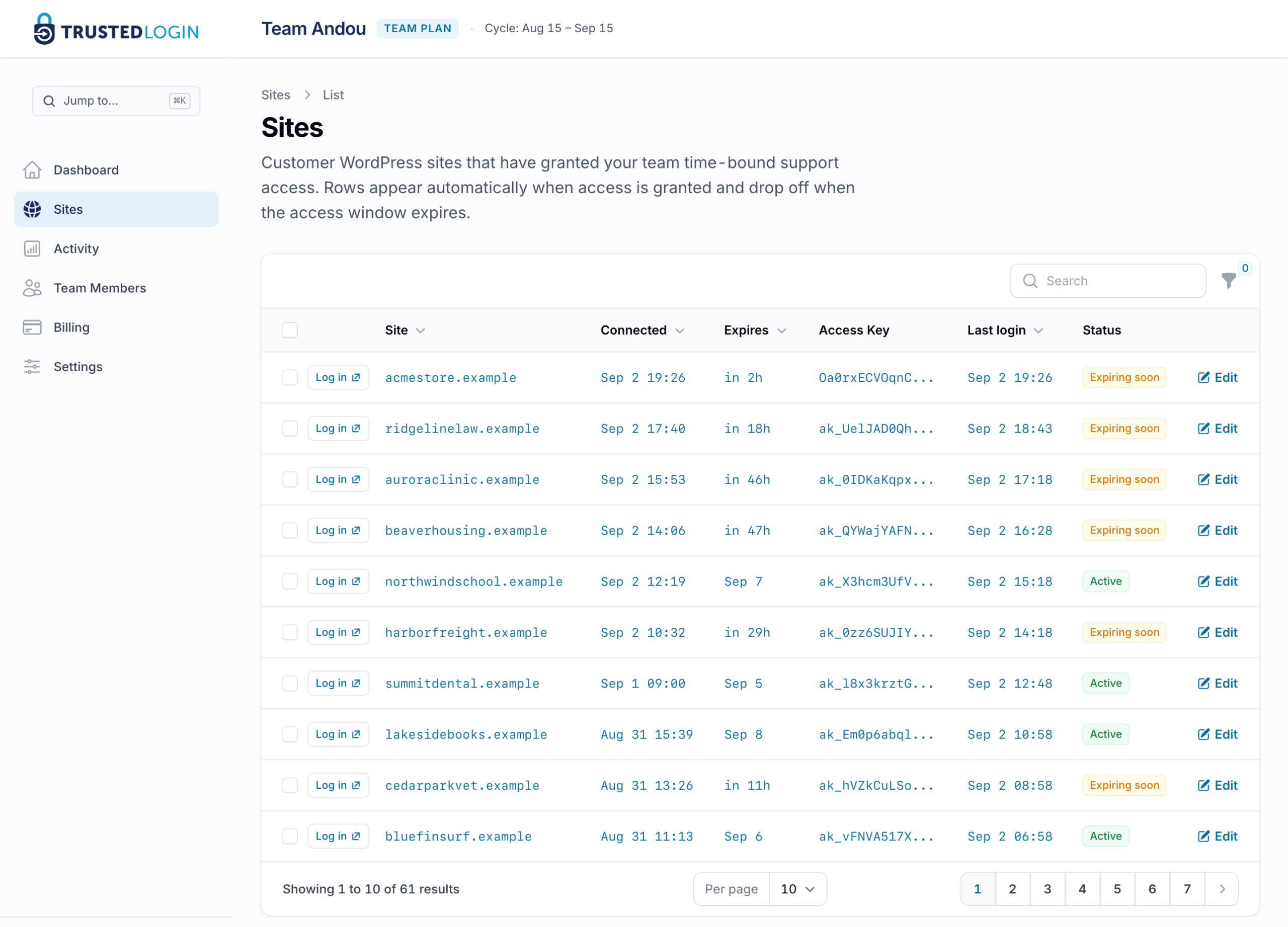
There is nothing to revoke when the engagement ends, because there was never a standing password. Install the Connector plugin on your own agency site once, and each client site that has granted you access shows up there with the window your team was given and when it runs out. When the work is done, access has already expired, or you end it in one click.
A vault shares a password; we don’t share one at all
A vault like 1Password is real infrastructure for a real problem: role-based sharing, breach monitoring, credentials that live outside WordPress entirely. It doesn’t solve this one. The password it shares is still a standing WordPress password, and revoking it means rotating it on the live site rather than toggling something off in the vault.
TrustedLogin never shares a password in the first place, so there is no rotation to schedule and no entry to delete.
Every client site in one dashboard, with the last login on each
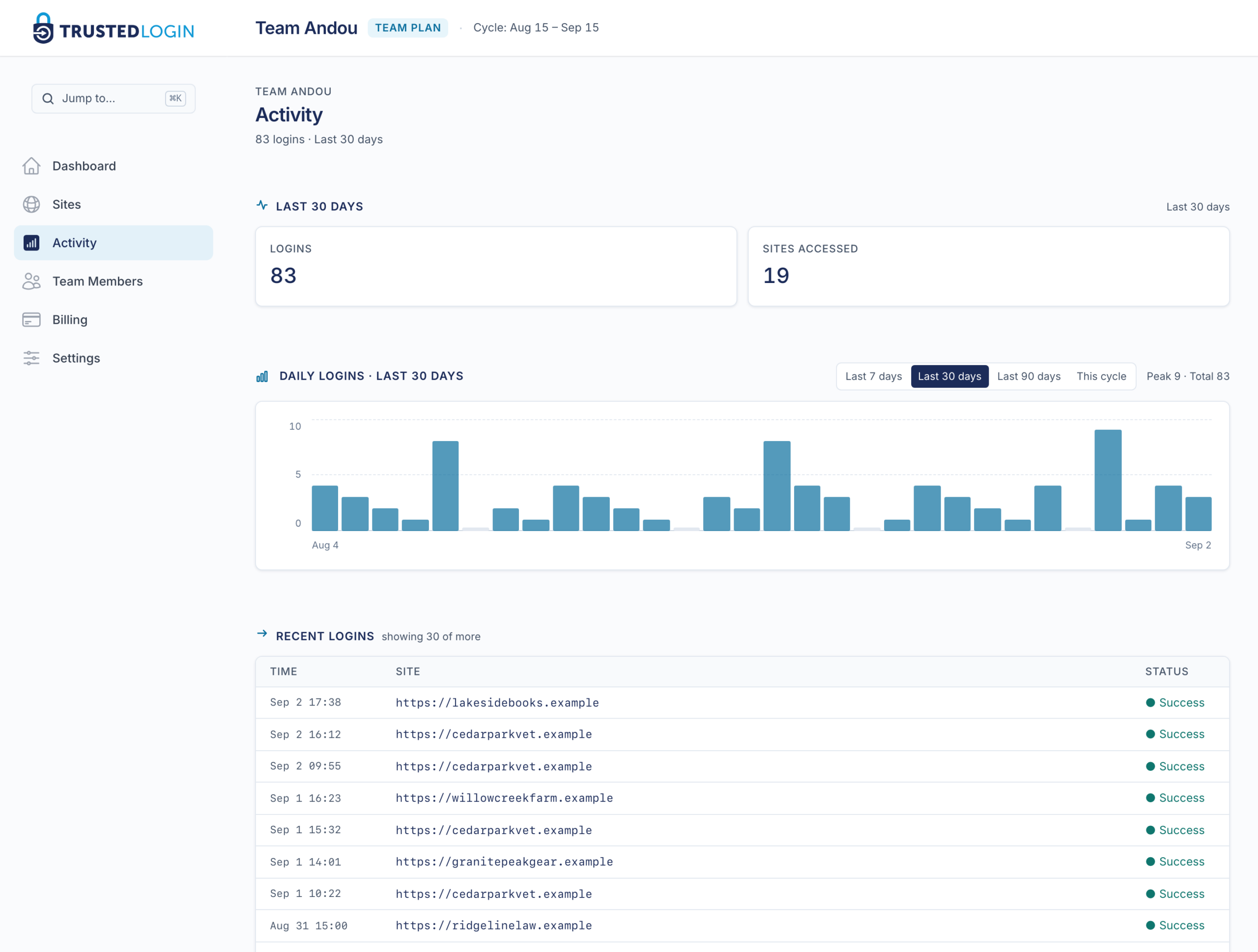
When a client asks who was in their site last month, you answer from a list instead of from memory. Every client site that has granted your agency access shows up in one dashboard: when the window expires, when someone last logged in, and whether it is still open. The Activity screen lists each login on its own line, kept for 90 days. The client sees the same account on their own site, in their own Users screen, and can end it there without asking you. Whenever a client asks for a hand, someone can be inside that specific site within minutes, working the actual problem instead of scheduling a call about it.
One piece lives on the client’s site
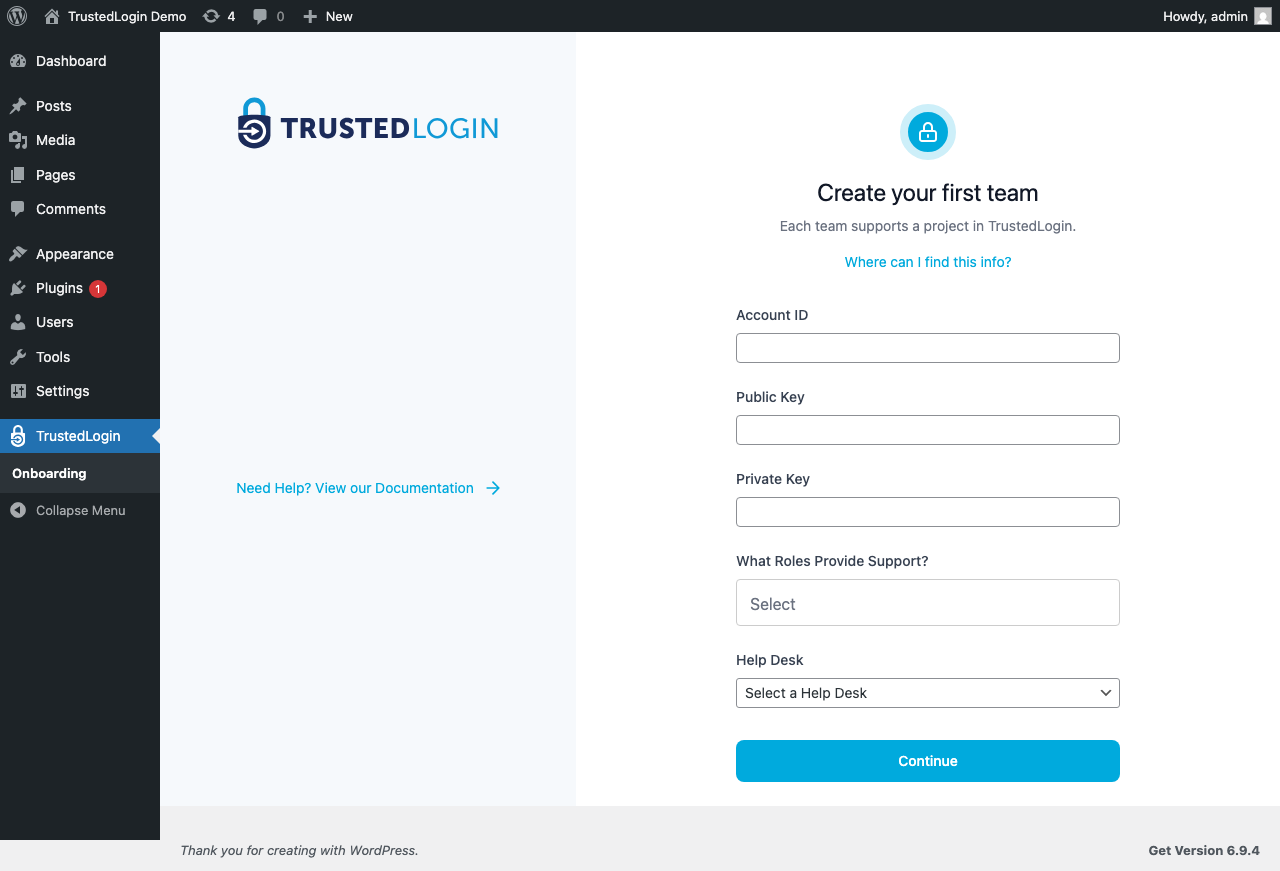
One piece has to live on the client’s site rather than yours: the part that lets them grant access in the first place. If a client already runs a plugin with TrustedLogin built in, they can grant you access through it directly. If not, talk to us about the setup that fits an agency without a product of its own. The whole exchange, from the client’s click to your agent’s login, is written out on how it works.
Secrets
A hosting login, a database password, an API key: whatever the engagement needs to move, in either direction. You send a secret link to the client, or the client sends one back, instead of an email that keeps the value forever. It disappears on first read or at an expiry you choose up to 30 days, and leaves a record of who opened it and when.