
Every step between the click and the login
Written for the person who has to be satisfied the mechanism is sound: your developer, a customer’s security reviewer, or you. One click for the customer, one click for your support agent, and in between a key exchange neither side has to think about.
What the customer sees
1
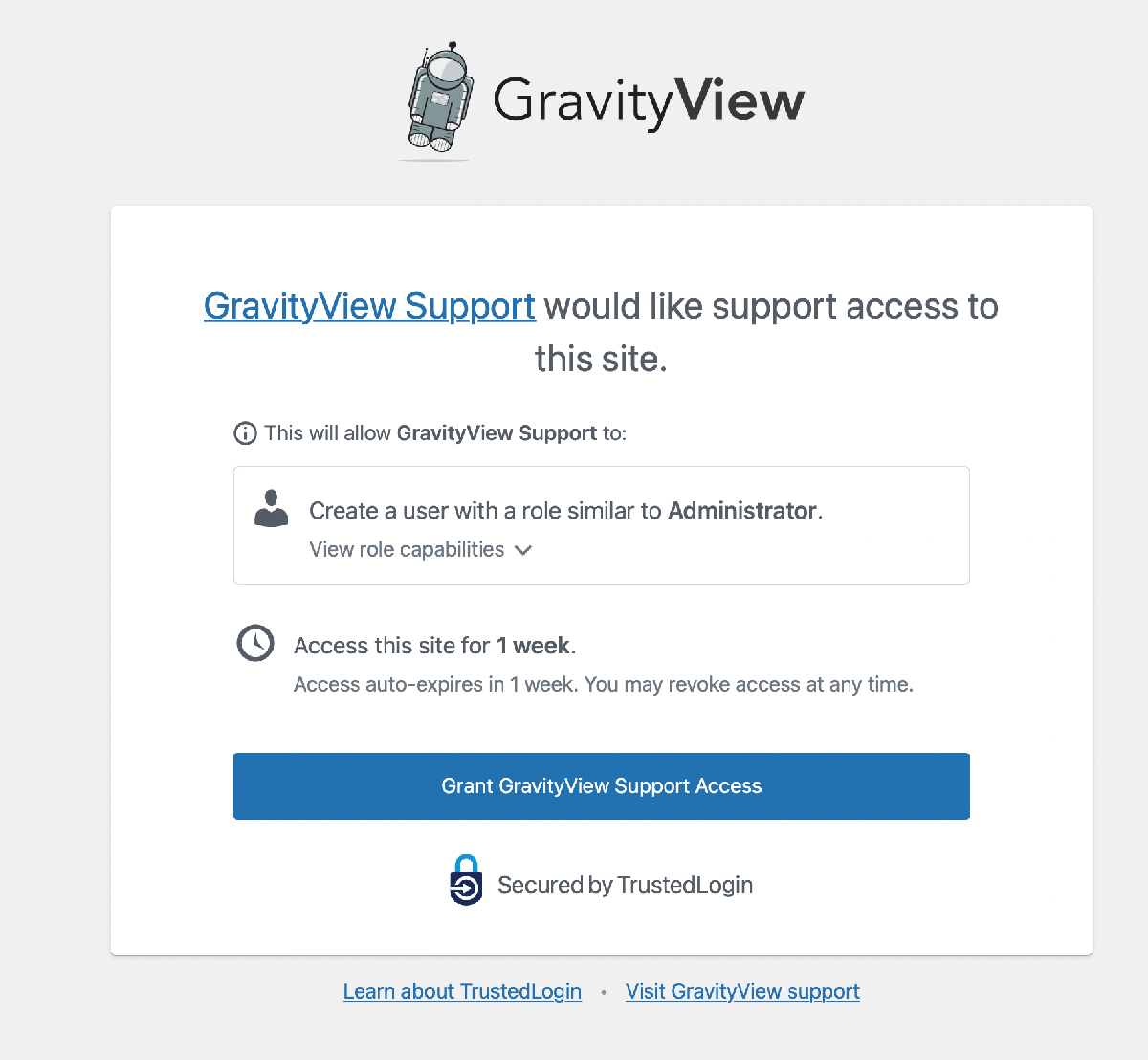
They’re in a support ticket and your reply says access would help. Inside your plugin’s admin screen, or a link you send, is a Grant Support Access button, added by our free SDK, code you embed in your own product.
2
They click it and see, in plain text, the access window and the role your plugin is configured to request. You set both when you installed the SDK; the customer’s choice is grant or don’t.
3
Behind that click, their site creates a new WordPress user account scoped to that role, and encrypts its login secret before anything leaves their server.
4
They see a confirmation and a countdown to expiry. They can revoke access themselves, any time, from their own wp-admin.
What your support agent sees
1
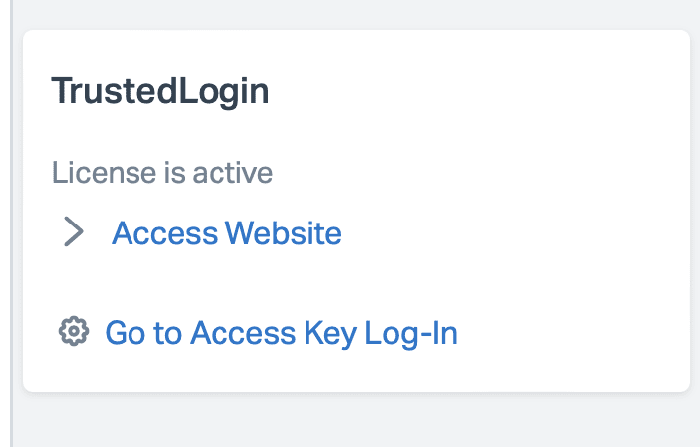
In Help Scout, the TrustedLogin panel in the sidebar shows this customer’s license and a link that logs your agent straight into their site. In the TrustedLogin dashboard, the grant appears under Sites with the time it expires.
2
They click Log In. Because they’re authenticated to your team’s TrustedLogin account, the encrypted grant is decrypted on your own site by the Connector, using a key that has never left it, and the customer’s site verifies the result and completes the login on its own.
3
They do the support work. When the grant expires, the account is gone on its own; nobody has to remember to clean it up.
4
If the ticket resolves early, either side can revoke access before the timer runs out.
Our servers never hold the key that opens it
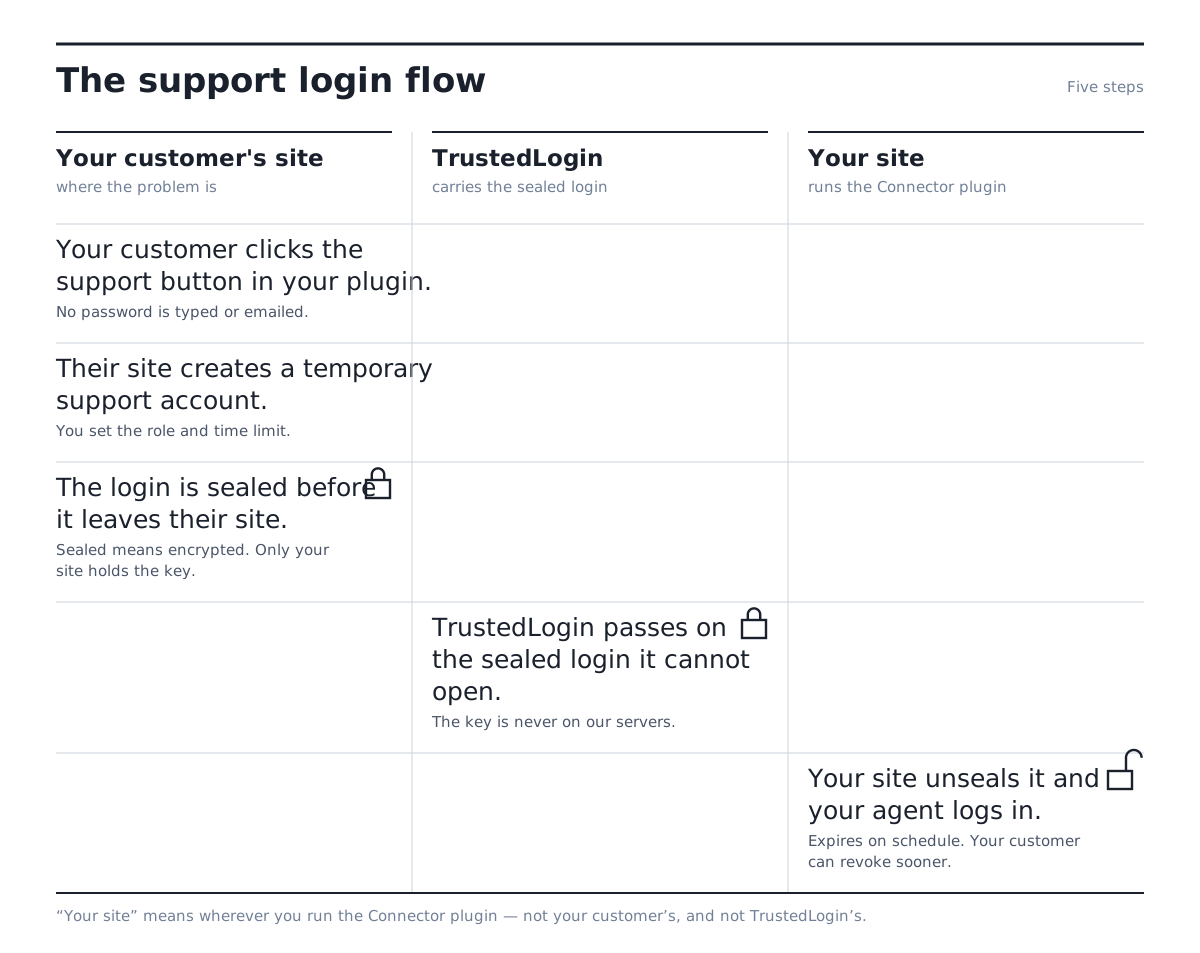
TrustedLogin’s servers relay an encrypted blob. They store it, route it, log that it moved, but they never hold the key that opens it. That key stays on your own site, inside the Connector plugin, the entire time. “TrustedLogin can’t read the credential it delivers” is true by construction: the system has no step at which it could. The full technical writeup, including the actual message flow, is at docs.trustedlogin.com/security, and the diagrammed version is at docs.trustedlogin.com/flows.
Every login leaves a record, kept 90 days
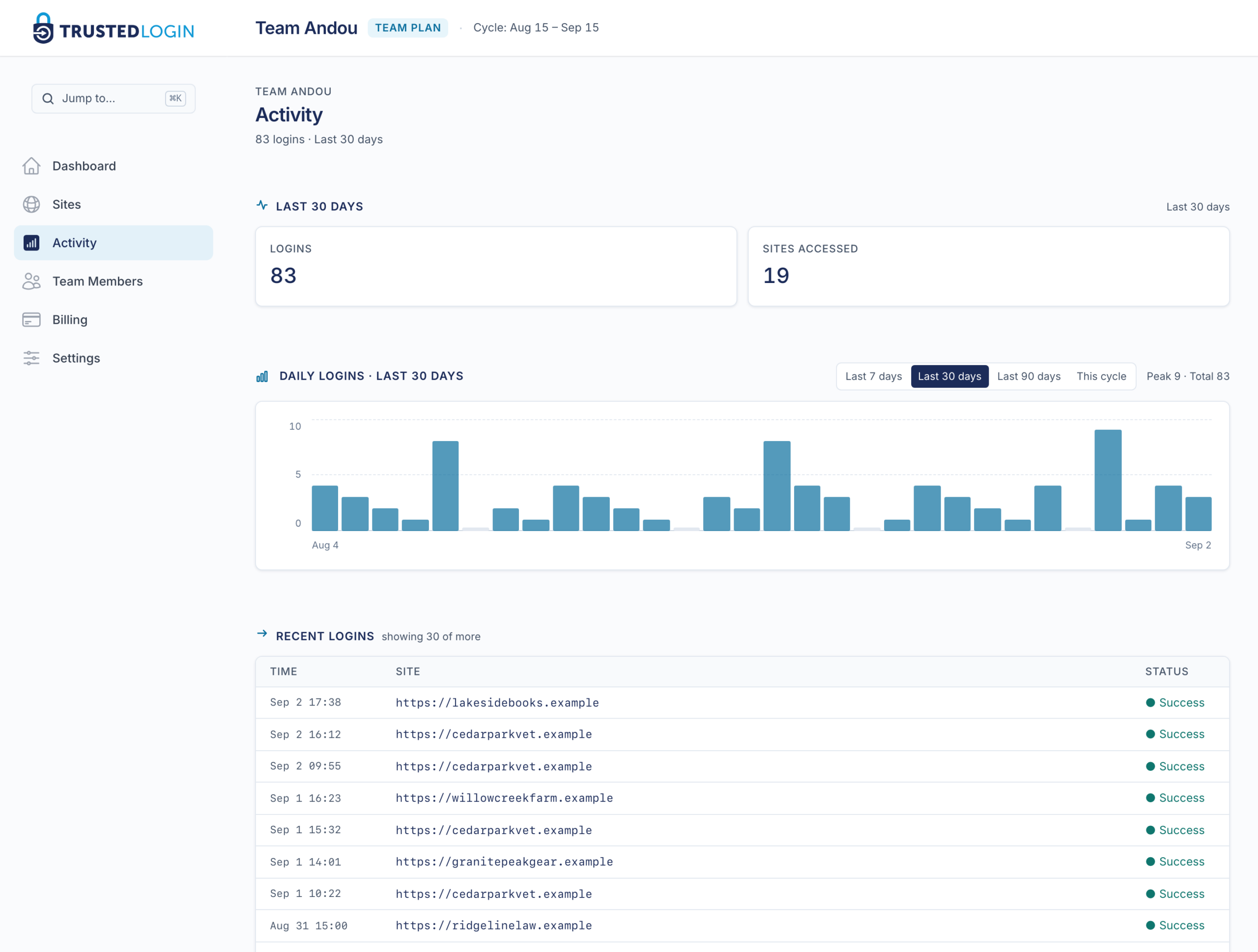
Every login lands on your team’s Activity screen: which customer site it went to, when, and whether it succeeded, with a daily count across the last 7, 30 or 90 days. Each site’s own record holds the access key, who connected it, when it was created and when it expires. The log is kept for 90 days.
Secrets
For the values a login doesn’t cover
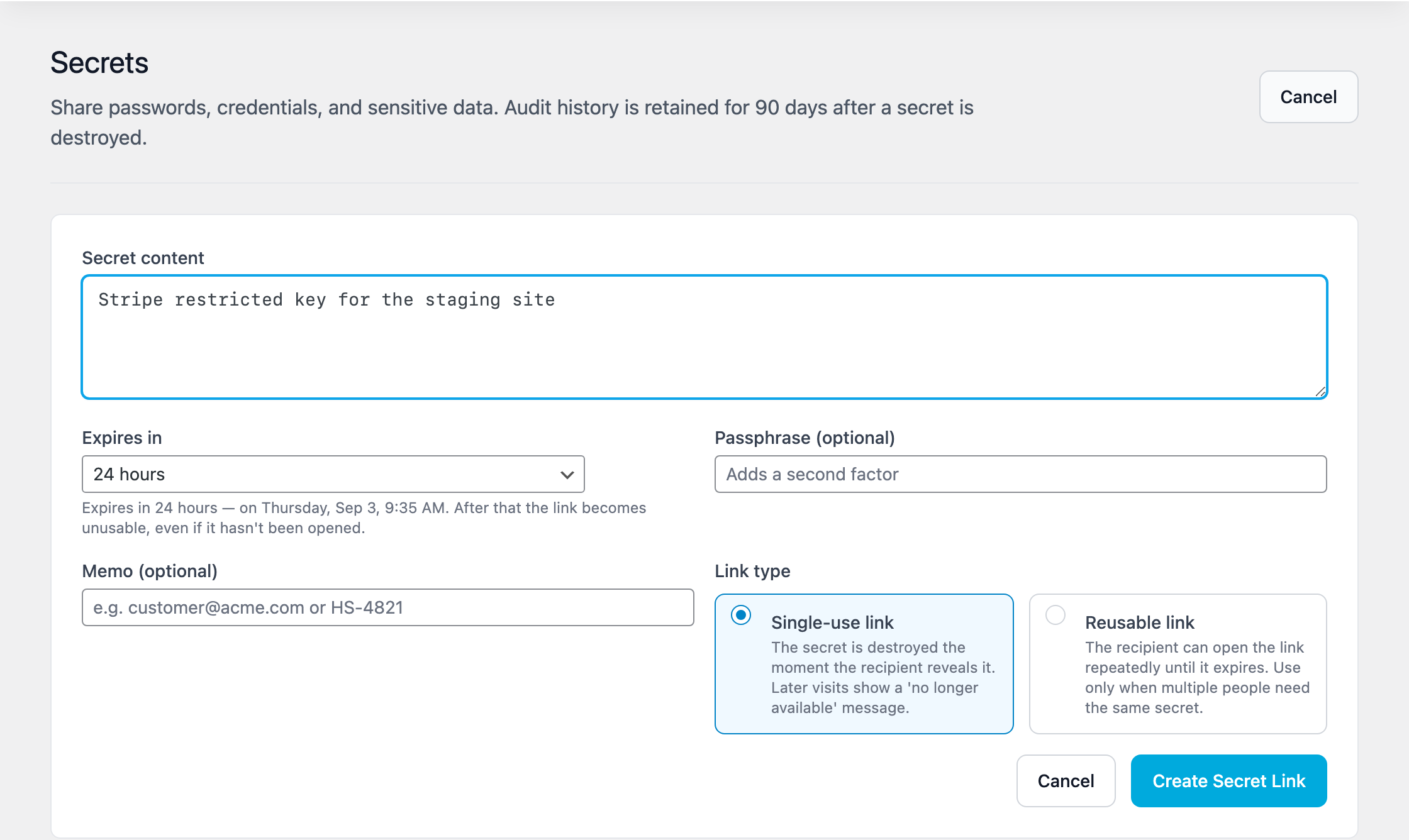
Sometimes the ticket needs one value rather than a login: a password, an API key, a connection string, moving in either direction. Secrets handle that separately from the grant flow: whoever holds the value pastes it in, chooses single-view or a set expiry up to 30 days, and gets back a link to send instead of typing the secret into the ticket. The decryption key lives only in the link’s fragment, the part after #, which never reaches any server, yours or ours. An optional passphrase adds a second factor, checked with a growing delay after each wrong guess. Every secret leaves its own record: who created it, when it was viewed, and from where, kept 90 days.
That’s the whole exchange: one click on each side, and a key that never leaves your own site in between. The security page walks through what we can and cannot see, and the vendor page shows what it takes to put the Grant Support Access button inside your own plugin.